
Save a Failed Autopilot Enrollment
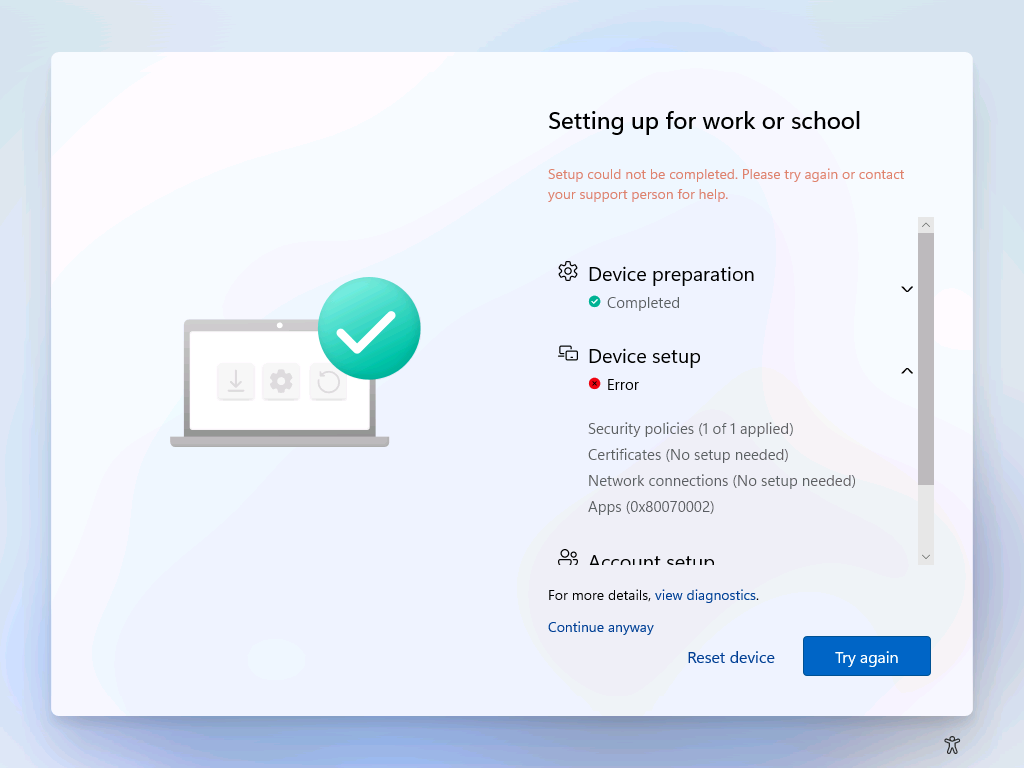
In case you have your ESP set to fail on blocking apps - this page might come up if one of those apps fails to install during Autopilot provisioning. At his stage the Try again button seems to only try to re-do the detection method or re-read one key part of the registry. Otherwise, the user (or you) has only one option: reset the device. That is quite time consuming.
Shift+(Fn)+F10 to the rescue
In case it's not disabled (it could be if you asked your OEM partner to ship devices with a special setting not to allow an admin command prompt) you can open a cmd box and jump right into the registry.
HKEY_LOCAL_MACHINE\SOFTWARE\Microsoft\Windows\Autopilot\EnrollmentStatusTracking\Device\Setup\Apps\Tracking\Sidecar\
This key contains the App IDs of your blocking apps one by one. On successful install under the AppID you will find an entry called InstallationState with a DWord value of 3. In case you have errors, this value will be probably a 4 with another entry - the error code itself.
Simply delete the error code entry and rewrite the InstallationState value to 3. Alt-Tab back to the ESP and click 'Try Again'. If all goes well, the device should continue with the process and you can save yourself some time. 😄
Having said that, you still need to troubleshoot why that app failed to install during the enrollment process.