Reset PC with a custom recovery image - PART II.

In Part I of the article we looked at how to create and customize a Recovery image with OSDCloud. We then replaced the Windows Recovery image that comes with Windows.
In this post we'll go further and automate the deployment of our new recovery partition and add a 'trigger app' for users to kick off a reset from the Intune Company Portal.
WARNING:
I added a Caveats section to the end of this post. It has some food for thought as to what might break or could have an adverse effect on the whole setup.
Be sure to check it out!
If you gave Part I a read and a try, I have high hopes that you have succeeded in forcing the machine into recovery and reinstall Windows in a completely automated* way!
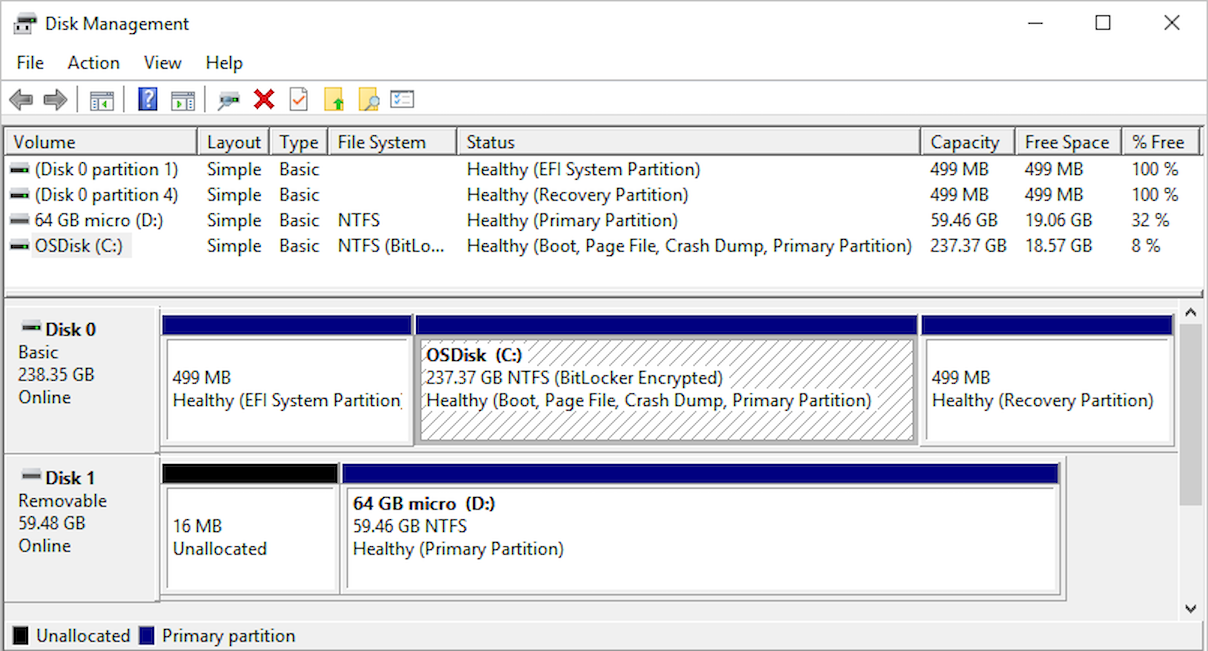
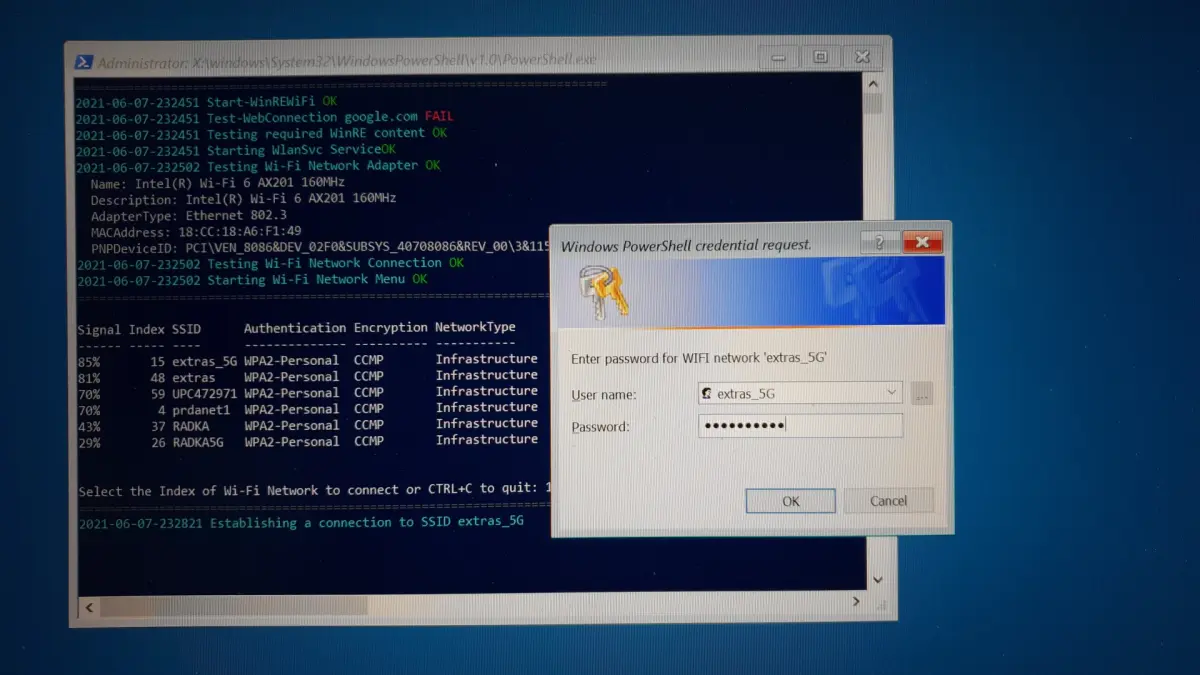
*In case the baked-in Wi-Fi network isn't available, user interaction is needed to select the SSID and enter the Wi-Fi password:
PowerShell App Deploy Toolkit
PSADT has undergone a few changes. It also received attention and a full re-design by PMPC. Similarly to OSDCloud - it stays free and open source! 🙂
Version 4.x is now a PS module and we'll use it both for the payload package and the Company Portal app to trigger the reset by the users.
Packaging the boot.wim
To check if you already have a version of PSADT installed:
get-module -ListAvailable -Name PSAppDeployToolkit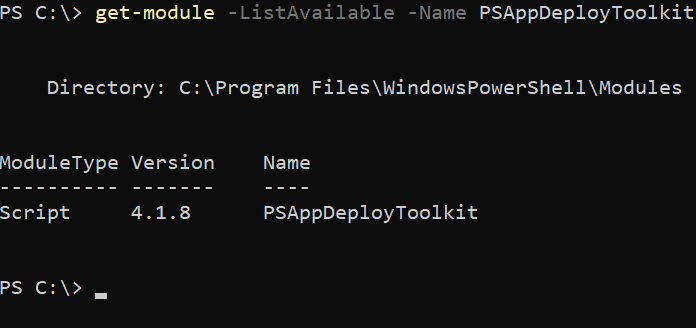
If you don't yet have it, just use Install-Module PSAppDeployToolkit.
I have version 4.1.8 which is the latest one at the time of writing. I'll stick to the naming from Part I of the article and create a new template:
New-ADTTemplate -Destination c:\temp\RecovarrOne perk of PSADT is that it creates a subfolder of itself in the target location, which I usually just rename to Source.
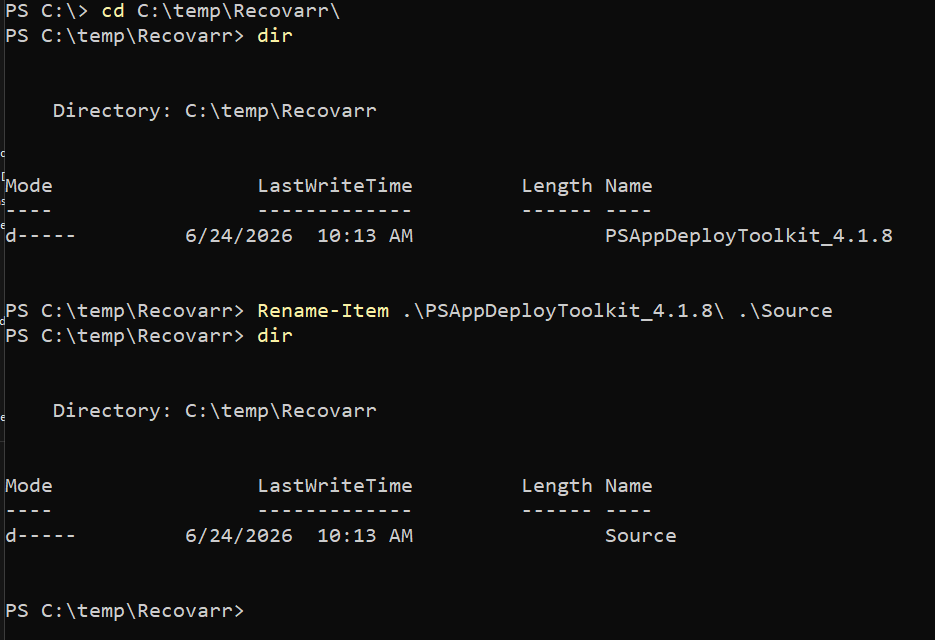
Your .wim file should be copied into the \Source\Files folder and ideally be renamed to anything but .wim.
PSADT mounts Windows Image files to install things from it. In our use case we don't want to mount it, just copy it to our recovery partition... So I renamed mine to boot.mmm.
PSADT code comes with named sections and regions to help you navigate. Open the Invoke-AppDeployToolkit.ps1 from the renamed folder in your favourite editor, to fill in the name, owner, etc in the Variables section:
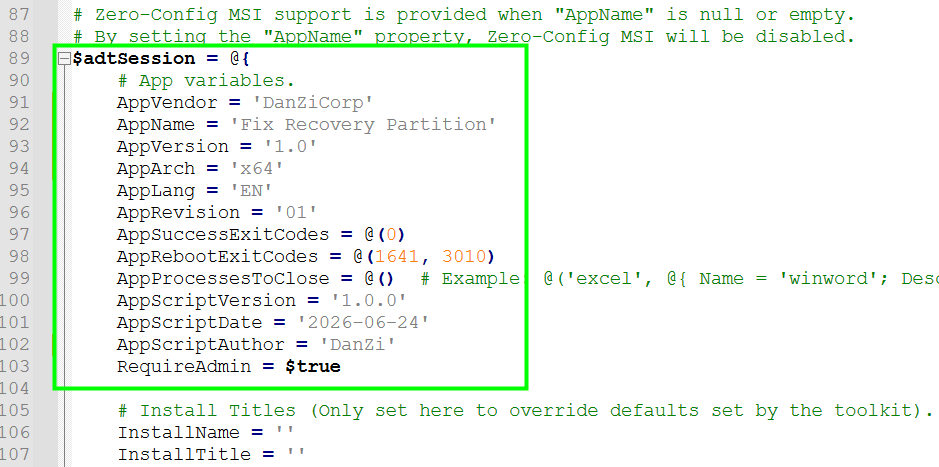
If you'd like the installer to be completely silent (which is certainly my preference), comment out the Installation Welcome and the Installation Progress popups from around lines 138-141. (This may vary based on the PSADT script template version). You can also remove the Post-Install section's Show-ADTInstallationPrompt.
The payload
I used some AI help for the script and Claude did a good job putting the basics together. It took some fiddling and finetuning to get it finalized and of course anything coded by an AI tool had to be triple-checked and tested.
For your specific use case a simpler script might be sufficient.
WARNING! Please test the script carefully on some test devices and look through the code!
My version assumes a few things:
- Payload
.wimfile is smaller than 1400 Mb, so the partition is set to 1400 Mb. - My
.wimfile is called boot.mmm - I have 3 scenarios, you might not need all of them - but the script works either way:
- multiple Recovery partitions
- no recovery partition
- one recovery partition at the end of the disk, which is either too small or too large
- The logic:
- Check for detection rule, if present, the script already ran, skip fixing and exit
- Check for our
.wim(of course it's there, since we package it 😁) - Disable the current recovery with reagentc
- Check for space, nuke the current recovery partition
- Shrink the data partition if needed
- Create a new primary partition, set it up for recovery
- Copy our
.wimfile (boot.mmm) to the new partition, rename it to Winre.wim - Set recovery image and enable recovery, check if it indeed was enabled
#Requires -RunAsAdministrator
<#
.SYNOPSIS
    Ensures a Windows Recovery Environment (WinRE) partition exists at the end of the OS disk
    and is at least 1.5 GB in size, using a custom Winre.wim from the PSADT Files folder.

.DESCRIPTION
    Logic:
      1. Resolve custom Winre.wim from .\Files\Winre.wim (relative to script location).
         Hard-fail if not found.
      2. Detect OS disk and partition (C:).
      3. Detect all recovery-typed partitions on the OS disk.
      4. Always work on the LAST recovery partition by disk offset (if any exist).
         Any earlier recovery partitions are left untouched.
      5. Decision tree:
            a. No recovery partition at all
               -> Shrink OS partition, create new one (>= MinimumRecoverySizeMB), enable WinRE.
            b. Recovery partition exists but is NOT the last partition
               -> Create a brand-new one at the end (OS partition shrunk as needed).
                  Old non-terminal partition left untouched.
            c. Recovery partition IS the last partition (regardless of count before it)
               -> Always delete and recreate cleanly (guarantees correct size + content).
      6. Copy custom Winre.wim into Recovery\WindowsRE on the new partition.
      7. Register and enable WinRE.

.PARAMETER MinimumRecoverySizeMB
    Minimum size in MB for the recovery partition. Default: 1536 (1.5 GB).

.PARAMETER ForceRelocateNonTerminalRecovery
    If a recovery partition exists but is not the last partition, normally the script
    exits safely. Use this switch to force creation of a new one at the end anyway.

.NOTES
    - Winre.wim must be present at .\Files\Winre.wim relative to the script.
    - Intended for deployment via PSADT.
    - Supports -WhatIf / -Confirm.
    - Tested on GPT/MBR, Windows 10/11.
#>

$MinimumRecoverySizeMB = 1400
# ---------------------------------------------------------------------------
# WIM path — hardcoded relative to script location (PSADT Files folder)
# ---------------------------------------------------------------------------
$Script:CustomWimPath = Join-Path $PSScriptRoot 'Files\Boot.mmm'

# ---------------------------------------------------------------------------
# Helper functions
# ---------------------------------------------------------------------------

function Write-Log {
    param(
        [Parameter(Mandatory)][string]$Message,
        [ValidateSet('INFO','WARN','ERROR','SUCCESS')][string]$Level = 'INFO'
    )
    $ts = Get-Date -Format 'yyyy-MM-dd HH:mm:ss'
    $prefix = "[$ts] [$Level]"
    switch ($Level) {
        'INFO'    { Write-Host "$prefix $Message" -ForegroundColor Cyan    }
        'WARN'    { Write-Host "$prefix $Message" -ForegroundColor Yellow  }
        'ERROR'   { Write-Host "$prefix $Message" -ForegroundColor Red     }
        'SUCCESS' { Write-Host "$prefix $Message" -ForegroundColor Green   }
    }
}

function Assert-CustomWim {
    if (-not (Test-Path -LiteralPath $Script:CustomWimPath)) {
        throw "Custom Winre.wim not found at '$Script:CustomWimPath'. " +
              "Ensure the file is placed in the PSADT Files folder before running."
    }
    Write-Log "Custom Winre.wim located at: $Script:CustomWimPath" 'INFO'
}

function Invoke-ReAgentC {
    param([Parameter(Mandatory)][string[]]$Arguments)

    $psi = New-Object System.Diagnostics.ProcessStartInfo
    $psi.FileName               = "$env:SystemRoot\System32\reagentc.exe"
    $psi.Arguments              = ($Arguments -join ' ')
    $psi.RedirectStandardOutput = $true
    $psi.RedirectStandardError  = $true
    $psi.UseShellExecute        = $false
    $psi.CreateNoWindow         = $true

    $p      = [System.Diagnostics.Process]::Start($psi)
    $stdout = $p.StandardOutput.ReadToEnd()
    $stderr = $p.StandardError.ReadToEnd()
    $p.WaitForExit()

    [pscustomobject]@{
        ExitCode = $p.ExitCode
        StdOut   = $stdout
        StdErr   = $stderr
    }
}

function Get-WinREInfo {
    $result = Invoke-ReAgentC -Arguments @('/info')
    if ($result.ExitCode -ne 0) {
        throw "reagentc /info failed.`n$($result.StdErr)`n$($result.StdOut)"
    }

    $enabled         = $false
    $diskNumber      = $null
    $partitionNumber = $null
    $location        = $null

    foreach ($line in ($result.StdOut -split "`r?`n")) {
        if ($line -match 'Windows RE status:\s+Enabled') {
            $enabled = $true
        }
        elseif ($line -match 'Windows RE location:\s+(.+)$') {
            $location = $matches[1].Trim()
            if ($location -match 'harddisk(\d+)\\partition(\d+)') {
                $diskNumber      = [int]$matches[1]
                $partitionNumber = [int]$matches[2]
            }
        }
    }

    [pscustomobject]@{
        Enabled         = $enabled
        Location        = $location
        DiskNumber      = $diskNumber
        PartitionNumber = $partitionNumber
        RawOutput       = $result.StdOut
    }
}

function Get-OsPartition {
    $p = Get-Partition -DriveLetter 'C' -ErrorAction SilentlyContinue
    if (-not $p) { throw "Could not determine OS partition from drive letter C:." }
    return $p
}

function Get-PartitionOffset {
    param($Partition)
    return [int64]$Partition.Offset
}

function Get-LastPartitionOnDisk {
    param([int]$DiskNumber)
    Get-Partition -DiskNumber $DiskNumber |
        Sort-Object { Get-PartitionOffset $_ } |
        Select-Object -Last 1
}

function Get-AllRecoveryPartitions {
    <#
    Returns all partitions on the disk that look like recovery partitions,
    sorted by offset ascending. Detects by GPT type GUID, MBR type 0x27,
    Type string, or correlation with the current reagentc-registered location.
    #>
    param(
        [int]$DiskNumber,
        $WinREInfo
    )

    $parts = Get-Partition -DiskNumber $DiskNumber

    $candidates = foreach ($p in $parts) {
        $isRecovery = $false

        # GPT recovery partition GUID (WinRE / Recovery Tools)
        if ($p.GptType -and $p.GptType -match 'DE94BBA4-06D1-4D40-A16A-BFD50179D6AC') {
            $isRecovery = $true
        }

        # Type property exposed by some providers
        if ($p.Type -match 'Recovery') {
            $isRecovery = $true
        }

        # MBR type 0x27 = 39 decimal (hidden NTFS recovery)
        if ($p.MbrType -eq 39) {
            $isRecovery = $true
        }

        # Correlate with reagentc registered location even if type detection missed it
        if ($null -ne $WinREInfo.DiskNumber -and
            $WinREInfo.DiskNumber -eq $DiskNumber -and
            $WinREInfo.PartitionNumber -eq $p.PartitionNumber) {
            $isRecovery = $true
        }

        if ($isRecovery) { $p }
    }

    return @($candidates | Sort-Object { Get-PartitionOffset $_ })
}

function Get-FreeDriveLetter {
    $used = (Get-Volume | Where-Object { $_.DriveLetter } | Select-Object -ExpandProperty DriveLetter)
    foreach ($letter in [char[]]([char]'R'..[char]'Z')) {
        if ($used -notcontains [string]$letter) { return [string]$letter }
    }
    throw "No free drive letter available between R: and Z:."
}

function Disable-WinRE {
    $info = Get-WinREInfo
    if ($info.Enabled) {
        Write-Log "Disabling WinRE..." 'INFO'
        $r = Invoke-ReAgentC -Arguments @('/disable')
        if ($r.ExitCode -ne 0) {
            throw "Failed to disable WinRE.`n$($r.StdErr)`n$($r.StdOut)"
        }
        Write-Log "WinRE disabled." 'SUCCESS'
    }
    else {
        Write-Log "WinRE is already disabled — skipping." 'INFO'
    }
}

function Set-RecoveryPartitionFlags {
    param(
        [int]$DiskNumber,
        [int]$PartitionNumber
    )

    $disk = Get-Disk -Number $DiskNumber

    if ($disk.PartitionStyle -eq 'GPT') {
        Write-Log "Setting GPT recovery type GUID and attributes on partition $PartitionNumber..." 'INFO'
        $dpScript = @(
            "select disk $DiskNumber"
            "select partition $PartitionNumber"
            "set id=de94bba4-06d1-4d40-a16a-bfd50179d6ac"
            "gpt attributes=0x8000000000000001"
        ) -join "`r`n"
        $tmp = Join-Path $env:TEMP "WinRE_GPT_${DiskNumber}_${PartitionNumber}.txt"
        $dpScript | Set-Content -Path $tmp -Encoding ASCII
        try {
            $out = & diskpart /s $tmp 2>&1
            if ($LASTEXITCODE -ne 0) {
                throw "diskpart failed setting GPT type/attributes.`n$out"
            }
            Write-Log "GPT type and attributes set successfully." 'INFO'
        }
        finally {
            Remove-Item $tmp -Force -ErrorAction SilentlyContinue
        }
    }
    elseif ($disk.PartitionStyle -eq 'MBR') {
        Write-Log "Setting MBR recovery type (ID 0x27) on partition $PartitionNumber..." 'INFO'
        $dpScript = @(
            "select disk $DiskNumber"
            "select partition $PartitionNumber"
            "set id=27 override"
        ) -join "`r`n"
        $tmp = Join-Path $env:TEMP "WinRE_MBR_${DiskNumber}_${PartitionNumber}.txt"
        $dpScript | Set-Content -Path $tmp -Encoding ASCII
        try {
            $out = & diskpart /s $tmp 2>&1
            if ($LASTEXITCODE -ne 0) {
                throw "diskpart failed setting MBR ID 0x27.`n$out"
            }
            Write-Log "MBR type set successfully." 'INFO'
        }
        finally {
            Remove-Item $tmp -Force -ErrorAction SilentlyContinue
        }
    }
    else {
        throw "Unsupported partition style: $($disk.PartitionStyle)"
    }
}

function New-RecoveryPartitionOnFreeSpace {
    param([int]$DiskNumber)

    Write-Log "Creating new recovery partition at end of disk..." 'INFO'

    # Find the end of the last existing partition to calculate the correct offset
    $lastExisting = Get-Partition -DiskNumber $DiskNumber |
        Sort-Object { [int64]$_.Offset } |
        Select-Object -Last 1

    $startOffset = [uint64]($lastExisting.Offset + $lastExisting.Size)

    # Get total disk size to calculate how much space is available at the end
    $disk          = Get-Disk -Number $DiskNumber
    $availableSize = $disk.Size - $startOffset

    if ($availableSize -lt 1MB) {
        throw "No usable free space found at end of disk after offset $startOffset."
    }

    Write-Log "Creating partition at offset $startOffset ($([math]::Round($availableSize / 1MB)) MB available)..." 'INFO'

    $dpScript = @(
        "select disk $DiskNumber"
        "create partition primary offset=$([math]::Round($startOffset / 1KB)) size=$([math]::Round($availableSize / 1MB))"
    ) -join "`r`n"
    $tmp = Join-Path $env:TEMP "WinRE_Create_${DiskNumber}.txt"
    $dpScript | Set-Content -Path $tmp -Encoding ASCII
    try {
        $out = & diskpart /s $tmp 2>&1
        if ($LASTEXITCODE -ne 0) {
            throw "diskpart failed creating partition.`n$out"
        }
    }
    finally {
        Remove-Item $tmp -Force -ErrorAction SilentlyContinue
    }

    # Retrieve the newly created partition (it will be the last one by offset)
    $newPart = Get-Partition -DiskNumber $DiskNumber |
        Sort-Object { [int64]$_.Offset } |
        Select-Object -Last 1

    Write-Log "New partition is #$($newPart.PartitionNumber) at offset $($newPart.Offset)." 'INFO'

    # Set GPT type and attributes BEFORE formatting
    Set-RecoveryPartitionFlags -DiskNumber $DiskNumber -PartitionNumber $newPart.PartitionNumber

    Start-Sleep -Seconds 3

    Write-Log "Formatting partition $($newPart.PartitionNumber) as NTFS (label: WinRE)..." 'INFO'
    Format-Volume -Partition $newPart -FileSystem NTFS -NewFileSystemLabel 'WinRE' -Confirm:$false | Out-Null

    return (Get-Partition -DiskNumber $DiskNumber -PartitionNumber $newPart.PartitionNumber)
}

function Invoke-ShrinkOsPartition {
    <#
    Shrinks the OS partition by the specified number of bytes.
    Throws if the shrink would violate the minimum supported size.
    #>
    param(
        [int]$DiskNumber,
        [int]$OsPartitionNumber,
        [uint64]$ShrinkByBytes
    )

    $osPart    = Get-Partition -DiskNumber $DiskNumber -PartitionNumber $OsPartitionNumber
    $supported = Get-PartitionSupportedSize -DiskNumber $DiskNumber -PartitionNumber $OsPartitionNumber
    $newSize   = [uint64]$osPart.Size - $ShrinkByBytes

    if ($newSize -lt $supported.SizeMin) {
        throw ("Cannot shrink OS partition by $([math]::Round($ShrinkByBytes / 1MB)) MB — " +
               "minimum supported size is $([math]::Round($supported.SizeMin / 1MB)) MB.")
    }

    Write-Log "Shrinking OS partition by $([math]::Round($ShrinkByBytes / 1MB)) MB..." 'INFO'
    Resize-Partition -DiskNumber $DiskNumber -PartitionNumber $OsPartitionNumber -Size $newSize | Out-Null
    Write-Log "OS partition shrunk successfully." 'SUCCESS'
}

function Enable-WinREOnPartition {
    <#
    Copies the custom Winre.wim into the recovery partition, registers it with
    reagentc using the GLOBALROOT device path, enables WinRE, then removes the
    temporary drive letter if we added one.
    #>
    param(
        [int]$DiskNumber,
        [int]$PartitionNumber
    )

    $part      = Get-Partition -DiskNumber $DiskNumber -PartitionNumber $PartitionNumber
    $hadLetter = [bool]$part.DriveLetter

    if (-not $hadLetter) {
        Write-Log "Assigning temporary drive letter to recovery partition $PartitionNumber..." 'INFO'
        Add-PartitionAccessPath -DiskNumber $DiskNumber -PartitionNumber $PartitionNumber `
            -AssignDriveLetter | Out-Null
        $part = Get-Partition -DiskNumber $DiskNumber -PartitionNumber $PartitionNumber
        if (-not $part.DriveLetter) {
            throw "Failed to assign a drive letter to recovery partition $PartitionNumber."
        }
    }

    $driveLetter = [string]$part.DriveLetter
    Write-Log "Recovery partition accessible at ${driveLetter}:\" 'INFO'

    try {
        # Create folder structure and copy WIM using the drive letter
        $reDir = "${driveLetter}:\Recovery\WindowsRE"
        if (-not (Test-Path $reDir)) {
            New-Item -ItemType Directory -Path $reDir -Force | Out-Null
        }

        $destWim = Join-Path $reDir 'Winre.wim'
        Write-Log "Copying custom Winre.wim to $destWim ..." 'INFO'
        Copy-Item -LiteralPath $Script:CustomWimPath -Destination $destWim -Force
        Write-Log "Copy complete." 'SUCCESS'

        # Register using GLOBALROOT path — required on GPT, more reliable than drive letter path
        $globalPath = "\\?\GLOBALROOT\device\harddisk${DiskNumber}\partition${PartitionNumber}\Recovery\WindowsRE"
        Write-Log "Registering WinRE image path: $globalPath" 'INFO'
        $setResult = Invoke-ReAgentC -Arguments @('/setreimage', '/path', $globalPath)
        if ($setResult.ExitCode -ne 0) {
            throw "reagentc /setreimage failed.`n$($setResult.StdErr)`n$($setResult.StdOut)"
        }

        Write-Log "Enabling WinRE..." 'INFO'
        $enableResult = Invoke-ReAgentC -Arguments @('/enable')
        if ($enableResult.ExitCode -ne 0) {
            throw "reagentc /enable failed.`n$($enableResult.StdErr)`n$($enableResult.StdOut)"
        }
    }
    finally {
        # Always remove the temp drive letter we added, even if something threw
        if (-not $hadLetter) {
            Write-Log "Removing temporary drive letter ${driveLetter}: from recovery partition..." 'INFO'
            Remove-PartitionAccessPath -DiskNumber $DiskNumber -PartitionNumber $PartitionNumber `
                -AccessPath "${driveLetter}:" | Out-Null
        }
    }

# Give the system a moment to settle before the first status check
    Write-Log "Waiting 10 seconds before verifying WinRE status..." 'INFO'
    Start-Sleep -Seconds 10

    $maxAttempts = 3
    $enabled     = $false

    for ($attempt = 1; $attempt -le $maxAttempts; $attempt++) {
        Write-Log "WinRE enable verification — attempt $attempt of $maxAttempts..." 'INFO'

        $finalInfo = Get-WinREInfo
        if ($finalInfo.Enabled) {
            $enabled = $true
            break
        }

        Write-Log "WinRE still reports disabled after attempt $attempt. Retrying reagentc /enable..." 'WARN'
        $enableResult = Invoke-ReAgentC -Arguments @('/enable')
        if ($enableResult.ExitCode -ne 0) {
            Write-Log "reagentc /enable failed on attempt ${attempt}: $($enableResult.StdErr)" 'WARN'
        }

        if ($attempt -lt $maxAttempts) {
            Write-Log "Waiting 15 seconds before next attempt..." 'INFO'
            Start-Sleep -Seconds 15
        }
    }

    if (-not $enabled) {
        throw "WinRE still reports as disabled after $maxAttempts attempts. Manual investigation required."
    }
    Write-Log "WinRE enabled successfully. Location: $($finalInfo.Location)" 'SUCCESS'
}

function Remove-PartitionSafely {
    param(
        [int]$DiskNumber,
        [int]$PartitionNumber
    )
    Write-Log "Removing partition $PartitionNumber on disk $DiskNumber..." 'WARN'
    Remove-Partition -DiskNumber $DiskNumber -PartitionNumber $PartitionNumber -Confirm:$false
}

# ---------------------------------------------------------------------------
# Main
# ---------------------------------------------------------------------------

    # 0. Validate custom WIM exists before touching anything on disk
    if (Test-Path 'C:\windows\logs\software\RecoveryFixed.tag') {
       Write-Log "RecoveryFixed.tag already exists — skipping, nothing to do." 'INFO'
    exit 0
}
    Assert-CustomWim

    $targetSizeBytes = [uint64]($MinimumRecoverySizeMB * 1MB)
    Write-Log "WinRE partition validation — minimum required size: $MinimumRecoverySizeMB MB" 'INFO'

    # 1. Identify OS disk and partition
    $osPart       = Get-OsPartition
    $diskNumber   = [int]$osPart.DiskNumber
    $osPartNumber = [int]$osPart.PartitionNumber
    $disk         = Get-Disk -Number $diskNumber

    Write-Log "OS is on disk $diskNumber, partition $osPartNumber (style: $($disk.PartitionStyle))" 'INFO'

    # 2. Current WinRE status
    $winREInfo = Get-WinREInfo
    if ($winREInfo.Enabled) {
        Write-Log "WinRE is currently enabled. Location: $($winREInfo.Location)" 'INFO'
    }
    else {
        Write-Log "WinRE is currently disabled or not registered." 'WARN'
    }

    # 3. Find all recovery partitions on this disk (sorted by offset)
    $allRecovery = @(Get-AllRecoveryPartitions -DiskNumber $diskNumber -WinREInfo $winREInfo)
    $lastPart    = Get-LastPartitionOnDisk -DiskNumber $diskNumber

    Write-Log "Recovery partition(s) found on disk: $($allRecovery.Count)" 'INFO'

    if ($allRecovery.Count -gt 1) {
        Write-Log "Multiple recovery partitions detected — will work on the last one only." 'WARN'
        foreach ($rp in $allRecovery) {
            $sizeMB = [math]::Round($rp.Size / 1MB, 0)
            Write-Log "  Partition $($rp.PartitionNumber) — offset $($rp.Offset) — $sizeMB MB" 'INFO'
        }
    }

    # Check if the last partition on the disk is itself a recovery partition.
    # If so, always work on that one directly — ignore any earlier recovery partitions.
    $lastPartIsRecovery = $allRecovery | Where-Object { $_.PartitionNumber -eq $lastPart.PartitionNumber }

    if ($lastPartIsRecovery) {
        $targetRecovery = $lastPartIsRecovery
        Write-Log "Last partition on disk is a recovery partition — targeting it directly." 'INFO'
    }
    else {
        # Target is the last recovery partition by offset (may not be the last partition overall)
        $targetRecovery = $allRecovery | Select-Object -Last 1
    }


# ---------------------------------------------------------------------------
# SCENARIO A — No recovery partition exists at all
# ---------------------------------------------------------------------------
    if (-not $targetRecovery) {
        Write-Log "No recovery partition found. Creating a new one at the end of the disk." 'WARN'

        if ($PSCmdlet.ShouldProcess("Disk $diskNumber",
                "Create new $MinimumRecoverySizeMB MB recovery partition and enable WinRE")) {
            Disable-WinRE
            Invoke-ShrinkOsPartition -DiskNumber $diskNumber `
                -OsPartitionNumber $osPartNumber -ShrinkByBytes $targetSizeBytes
            $newRe = New-RecoveryPartitionOnFreeSpace -DiskNumber $diskNumber
            Enable-WinREOnPartition -DiskNumber $diskNumber -PartitionNumber $newRe.PartitionNumber
            Write-Log "Done. New recovery partition created and WinRE enabled." 'SUCCESS'
        }
        return
    }

    $recoveryIsLast = ($targetRecovery.PartitionNumber -eq $lastPart.PartitionNumber)
    $recoverySizeMB = [math]::Round($targetRecovery.Size / 1MB, 0)

    Write-Log "Target recovery partition: #$($targetRecovery.PartitionNumber), size: $recoverySizeMB MB, is last: $recoveryIsLast" 'INFO'

# ---------------------------------------------------------------------------
# SCENARIO B — Recovery partition exists but is NOT the last partition
#              (e.g. middle partition left over from a Win11 23H2->24H2 upgrade)
# ---------------------------------------------------------------------------
    if (-not $recoveryIsLast) {
        if (-not $ForceRelocateNonTerminalRecovery) {
            Write-Log ("Recovery partition #$($targetRecovery.PartitionNumber) is not the last partition. " +
                       "Re-run with -ForceRelocateNonTerminalRecovery to create a new one at the end.") 'WARN'
            return
        }

        Write-Log "Recovery partition is not the last partition. Creating a new one at the end." 'WARN'

        if ($PSCmdlet.ShouldProcess("Disk $diskNumber",
                "Create new recovery partition at end ($MinimumRecoverySizeMB MB) and enable WinRE")) {
            Disable-WinRE
            Invoke-ShrinkOsPartition -DiskNumber $diskNumber `
                -OsPartitionNumber $osPartNumber -ShrinkByBytes $targetSizeBytes
            $newRe = New-RecoveryPartitionOnFreeSpace -DiskNumber $diskNumber
            Enable-WinREOnPartition -DiskNumber $diskNumber -PartitionNumber $newRe.PartitionNumber
            Write-Log "Done. New recovery partition created at end." 'SUCCESS'
            Write-Log "Old partition #$($targetRecovery.PartitionNumber) left untouched intentionally." 'WARN'
        }
        return
    }

# ---------------------------------------------------------------------------
# SCENARIO C — Recovery partition IS the last partition.
#              Always delete and recreate cleanly regardless of current size.
#
#   Sub-cases:
#     C1. Existing < target  -> shrink OS by the shortfall first, delete, create
#     C2. Existing = target  -> delete (space returns to free), shrink OS by target, create
#     C3. Existing > target  -> delete (space returns to free), shrink OS by target, create
#   C2 and C3 are identical in code — delete first, then shrink OS by exactly
#   MinimumRecoverySizeMB, then create. New-RecoveryPartitionOnFreeSpace uses
#   -UseMaximumSize so it claims all available free space at the end.
# ---------------------------------------------------------------------------
Write-Log "Recovery partition IS the last partition ($recoverySizeMB MB). Recreating cleanly..." 'INFO'

if ($PSCmdlet.ShouldProcess(
        "Disk $diskNumber partition $($targetRecovery.PartitionNumber)",
        "Delete and recreate recovery partition ($MinimumRecoverySizeMB MB), enable WinRE")) {

    Disable-WinRE

    $currentReBytes = [uint64]$targetRecovery.Size

    if ($currentReBytes -lt $targetSizeBytes) {
        # C1 — existing is too small; take the shortfall from the OS partition before deleting
        $shortfallBytes = $targetSizeBytes - $currentReBytes
        Write-Log ("Existing partition ($recoverySizeMB MB) is smaller than target. " +
                   "Shrinking OS by $([math]::Round($shortfallBytes / 1MB)) MB first.") 'INFO'
        Invoke-ShrinkOsPartition -DiskNumber $diskNumber `
            -OsPartitionNumber $osPartNumber -ShrinkByBytes $shortfallBytes
        Remove-PartitionSafely -DiskNumber $diskNumber -PartitionNumber $targetRecovery.PartitionNumber
    }
    else {
        # C2/C3 — existing is at or above target; delete it and the free space it
        # occupied is sufficient for the new partition. No OS shrink needed.
        Write-Log ("Existing partition ($recoverySizeMB MB) is at or above target size. " +
                   "Deleting it — free space will be used for the new partition directly.") 'INFO'
        Remove-PartitionSafely -DiskNumber $diskNumber -PartitionNumber $targetRecovery.PartitionNumber
    }

    $newRe = New-RecoveryPartitionOnFreeSpace -DiskNumber $diskNumber
    Enable-WinREOnPartition -DiskNumber $diskNumber -PartitionNumber $newRe.PartitionNumber

    Write-Log "Done. Recovery partition recreated cleanly and WinRE enabled." 'SUCCESS'
}
Sorry for the long scroll, should have used a github link (note to self)
Paste all of this in the Invoke-AppDeployToolkit.ps1 file's MARK: Install section, below this line:

Intune Detection tag
To make sure Intune knows this worked, we'll create a quick tag file.
In the MARK: Post-Install section I added one line:
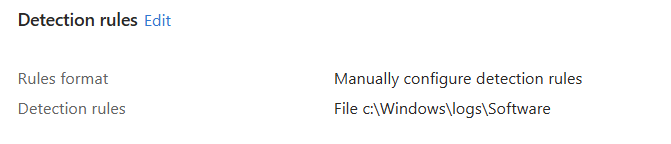
New-Item -Path c:\windows\logs\software -Name 'RecoveryFixed.tag' -ItemType File
Result
Running the script should result in an 1400 Mb recovery partition at the end of the disk that is enabled and ready to be used.
If you want to test this e.g from PowerShell ISE, you'll need to run it as admin, or even better - use psexec to test it as local system. Intune Management Extension will run it in the local system context.
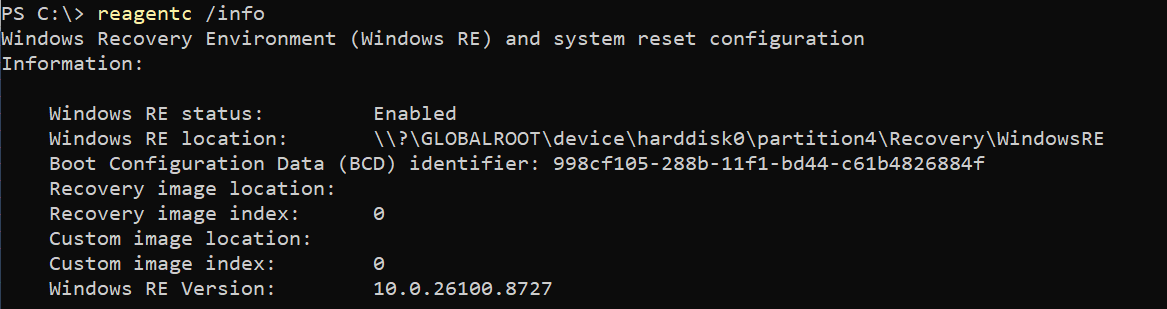
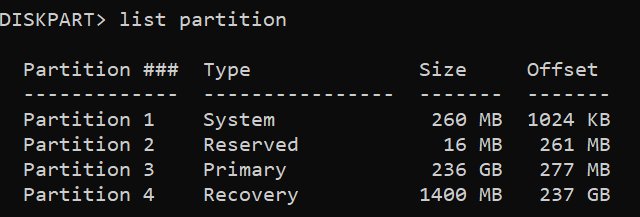
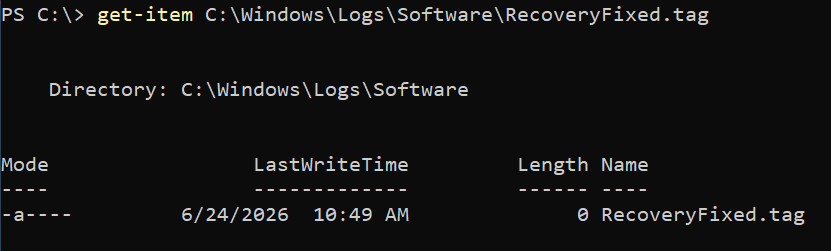
Detection file is also present as expected:
To create the Intune package we'll use IntuneWinAppUtil.exe which can be downloaded here:
 microsoft
When you run it the exe asks only a few questions, but I am sure you are already familiar with the method creating a Win32 app in Intune:

You'll then go through the usual Win32 app creation, and use the created Invoke-AppDeployToolkit.intunewin file from the output folder:
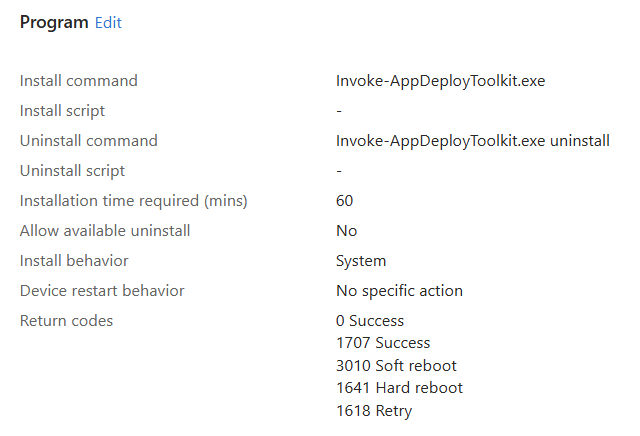
Don't forget the tag file for detection!
Packaging the Company Portal app
PSADT template again! 🙂

Now, in this package we'd ideally like to:
- Check if the Recovery partition fix was applied already
- Warn the user that the device will be wiped clean
In the Pre-Install section we could exit early if the .tag file from the step above is missing. It's a safety measure. Also, it makes sense to communicate to the user via PSADT's built-in methods that this is irreversible!
The prompt will of course only appear if the tag file is present:
    ##================================================
    ## MARK: Pre-Install
    ##================================================
    $adtSession.InstallPhase = "Pre-$($adtSession.DeploymentType)"

    ## Show Welcome Message, close processes if specified, allow up to 3 deferrals, verify there is enough disk space to complete the install, and persist the prompt.
    $saiwParams = @{
        AllowDefer = $true
        DeferTimes = 3
        CheckDiskSpace = $true
        PersistPrompt = $true
    }
    if ($adtSession.AppProcessesToClose.Count -gt 0)
    {
        $saiwParams.Add('CloseProcesses', $adtSession.AppProcessesToClose)
    }

    #Show-ADTInstallationWelcome @saiwParams

    $fixed = test-path -path "C:\Windows\Logs\Software\RecoveryFixed.tag"
    if(-not $fixed){
        Write-ADTLogEntry -Message 'Recovery Partition fix has not yet been applied! Exiting...' -Severity Error
        exit 1
    }
    Write-ADTLogEntry -Message "Recovery Partition fix has been applied as per the tag file's presence, continuing..." -Severity Info


    $result = Show-ADTInstallationPrompt `
        -Message "Continuing here will irreversibly erase the contents of this device - converting it to an Autopilot enrollment.`r`rAre you OK to continue?" `
        -ButtonLeftText 'Continue' `
        -ButtonRightText 'Cancel'

    if ($result -eq 'Continue') {
        # User clicked Continue
        Write-ADTLogEntry -Message 'user clicked Continue' -Severity Info
    } elseif ($result -eq 'Cancel') {
        # User clicked Cancel
        Write-ADTLogEntry -Message 'user clicked Cancel' -Severity Info
        exit 0
    }

    ## Show Progress Message (with the default message).

    #Show-ADTInstallationProgress


    ## <Perform Pre-Installation tasks here>
I have commented out:
- Show-ADTInstallationProgress
- Show-ADTInstallationWelcome @saiwParams
The Install part
We need to switch the device to boot into recovery on the next boot then force a reboot. I am using the same two commands that we used in Part I:
    ## <Perform Installation tasks here>
    $reagentResult = Start-ADTProcess -FilePath "C:\Windows\System32\ReAgentc.exe" -ArgumentList '/boottore' -PassThru

    if ($reagentResult.ExitCode -eq 0) {
        Start-Sleep -Seconds 5
        Start-ADTProcess -FilePath "C:\Windows\System32\shutdown.exe" -ArgumentList '-f -r -t 0'
    } else {
        Write-ADTLogEntry -Message "ReAgentc.exe failed with exit code $($reagentResult.ExitCode). Skipping reboot." -Severity 2
    }
If for some reason reagentc was not able to flip the switch, then it doesn't make sense to force a reboot... we can at least log the exit code.
Now, lLet's package this up and add the best logo I can think of in the Company Portal:


Upload it to Intune in the usual Win32 app package way as above and make it available to users who are scheduled to convert to Autopilot.
You can even add a pre-requisite in this app in Intune itself for the fix tag check rather than in the script:
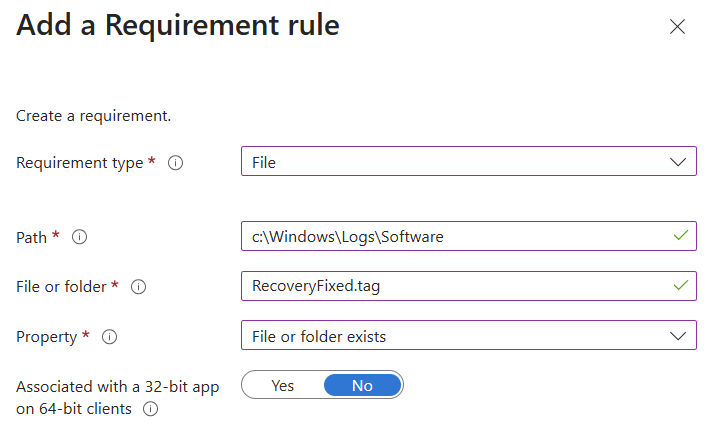
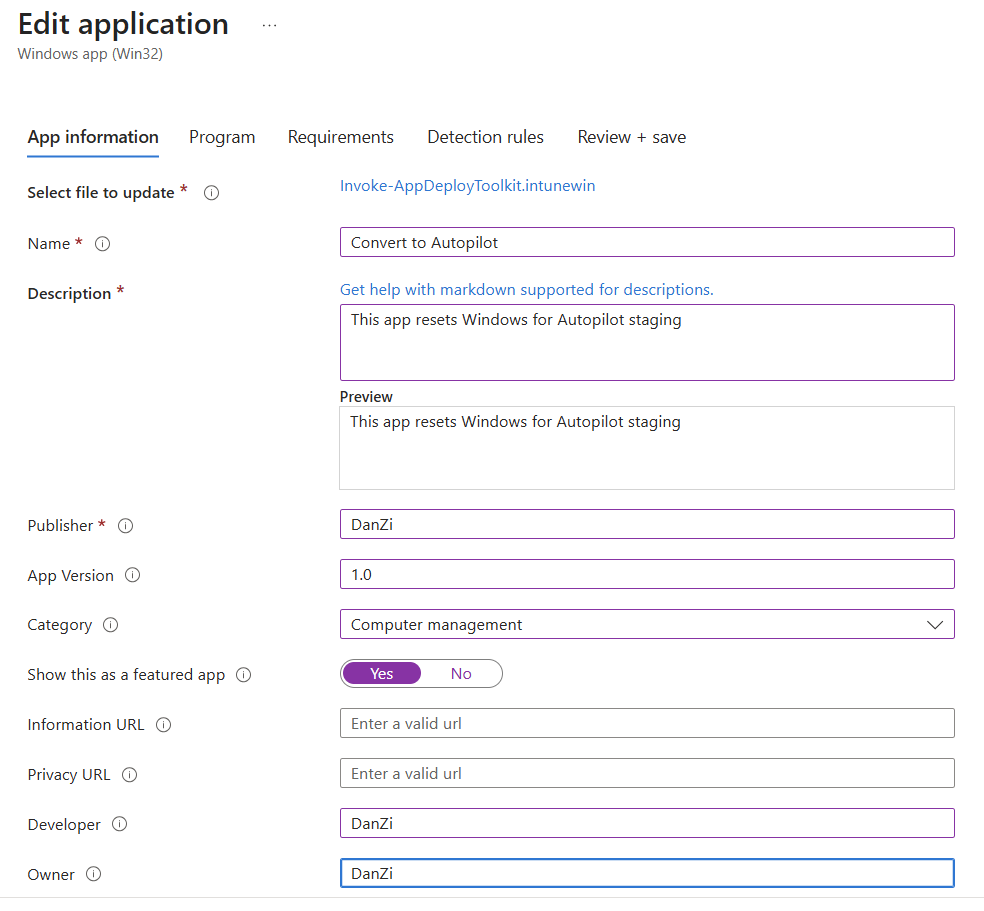
Make the app a Featured one so that users would find it easily:
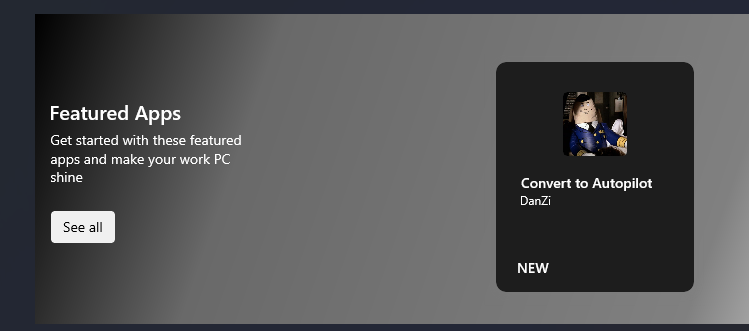
Users can now reset at will! 🙂
And with that, it's all done!
Caveats
... things that may or may not happen:
- Subsequent Windows Cumulative Updates touch the Recovery partition and 'fix' it back to the built-in WinRE image, breaking all our hard work
To mitigate this you can time the deployment of the recovery partition fix as close to the users' conversion schedule as you want, typically a few days before. Also, the script can be redeployed, easiest fix is to change the detection method both in the script itself and in Intune to a new filename. This should force IME re-installs the package. - Scripts break the partitions - there is always a chance to break the device with all of the above, although the commands are generally well-known and work reliably.
In case some VIP users store data locally instead of OneDrive, Sharepoint, File servers, etc - alternative backup methods are strongly advised. Data loss is always a sad thing. Backup your data!